
Organization settings
Organization settings apply to the people and vaults inside one Alpha workspace. Organization admins can open them from Settings > Members & access.
Members and access
Use Members & access to invite people, assign organization roles, choose managers, and review access requests.
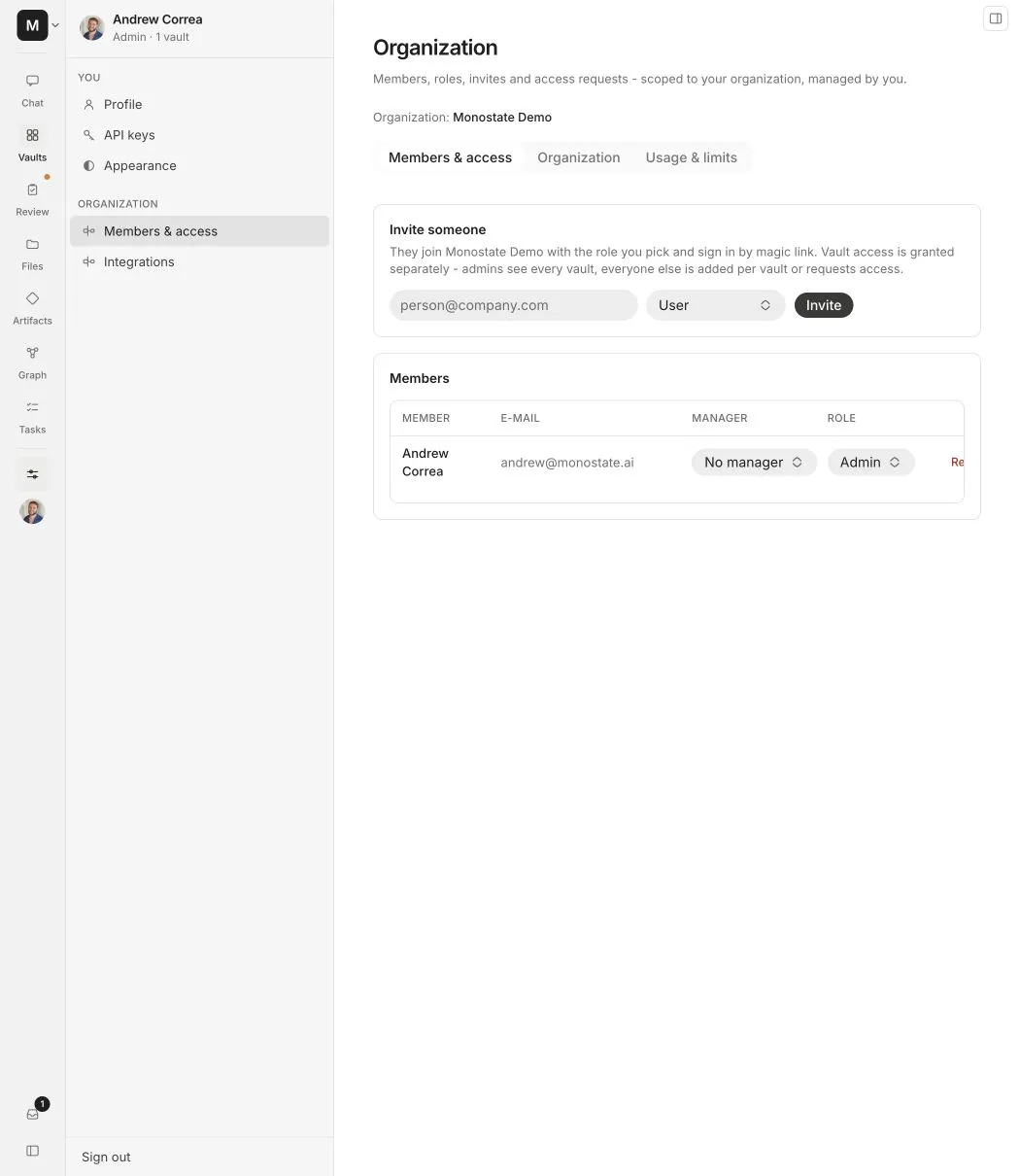
Invite someone
Enter the person’s email address and choose an organization role. The invitation email signs them into the same organization. Vault access is granted separately unless the person is an organization admin.
Manage current members
The member table shows:
- The member’s name and email
- Their manager, if one is assigned
- Their organization role
- The option to remove them from the organization
Role and manager changes take effect immediately. Removing someone also removes their ability to reach organization vaults. Their imported source material remains in the vaults where it was stored.
Review the member and their vault memberships before removing them. Organization removal affects every vault they access in this workspace.
Review access requests
When a person requests a vault they cannot open, every vault admin receives an in-app notification and email. The approver can:
- Approve the request as a vault member or vault manager
- Add the person to other related vaults during the same review
- Deny the request
The requester receives an in-app notification when the request is approved or denied.
Organization identity
The Organization tab controls the workspace logo and automatic joining by email domain.
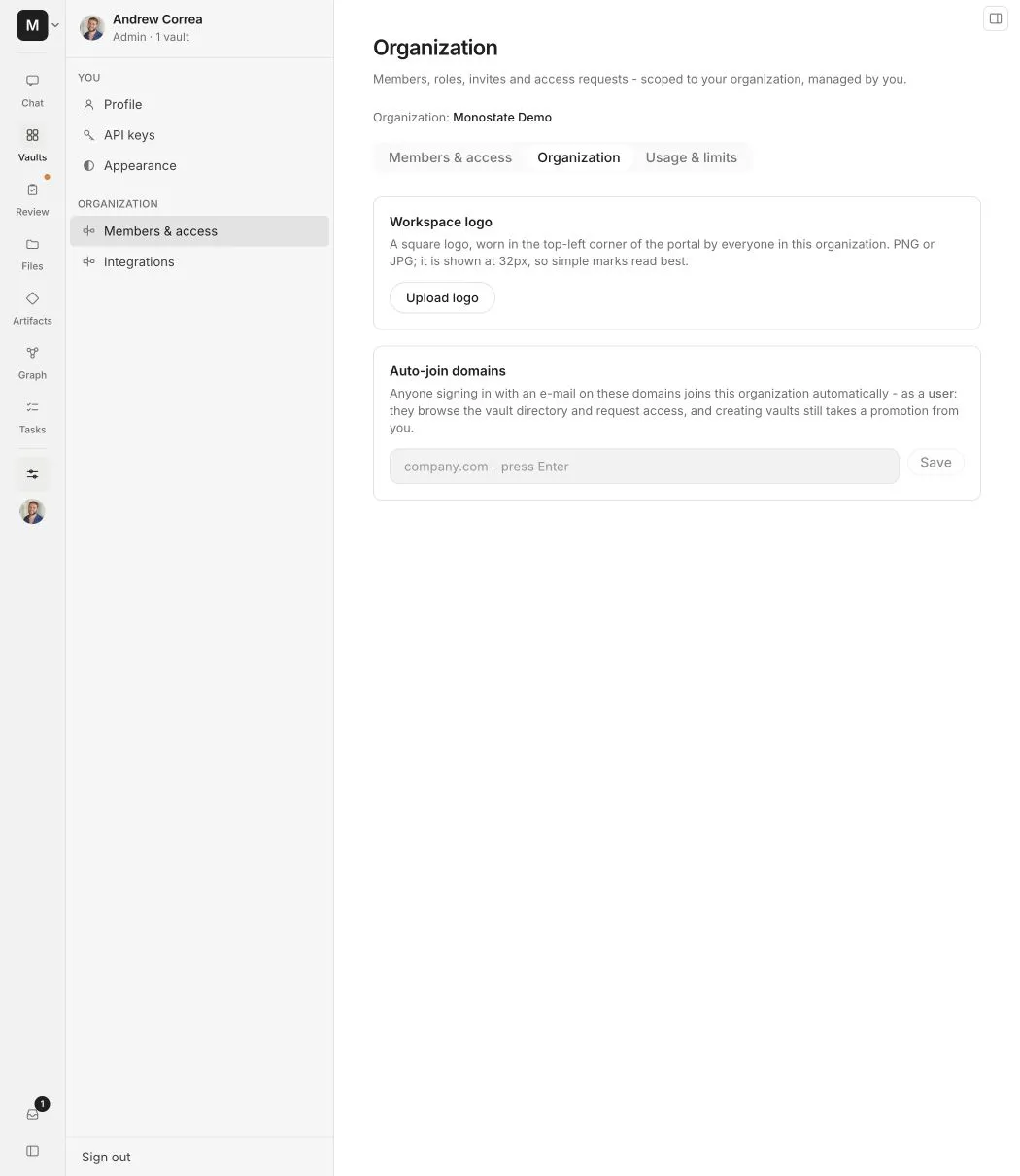
Workspace logo
Upload a square PNG or JPG. Alpha displays it in the top-left workspace control at 32 pixels, so use a clear mark with enough padding to remain legible at a small size.
Automatic joining
Add trusted company domains to let people with a matching email address join the organization automatically as a User.
An automatically joined user can browse the vault directory and request access. They cannot create vaults until an admin changes their organization role to Manager or Admin.
Only add domains controlled by your organization. A broad or client-owned domain may admit people who should not be members of your workspace.
Usage and limits
The Usage & limits tab shows AI processing across the organization for a rolling 30-day window.
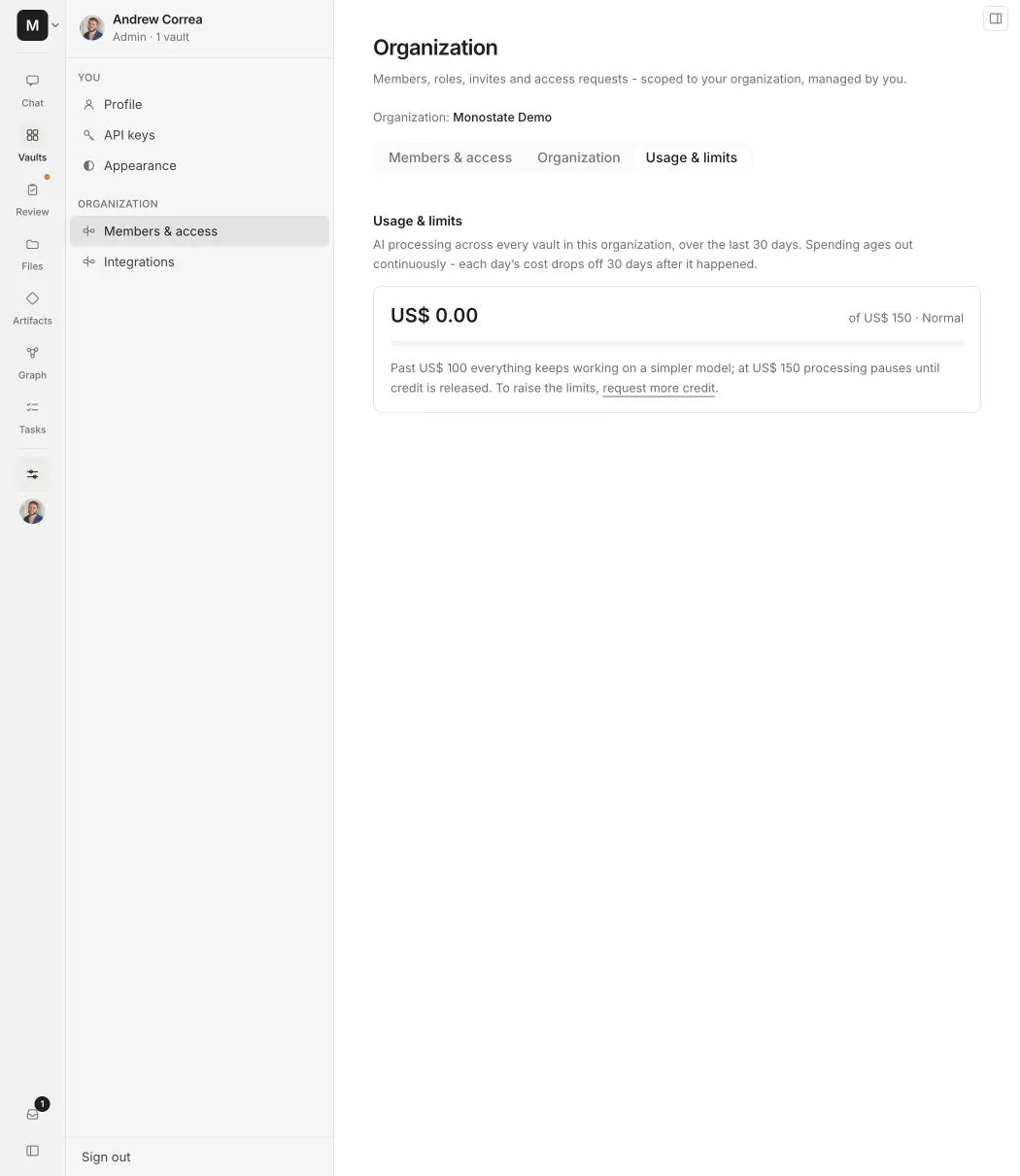
You can review usage by day, processing kind, and vault when activity exists.
- The soft limit switches eligible work to a simpler model after the threshold is reached.
- The hard limit pauses additional AI processing until usage drops below the rolling window or the limit changes.
- Stored data and completed results remain available while processing is paused.
Use the vault breakdown to find a source or workflow that is consuming more processing than expected before increasing a limit.